Using email signature banners for company announcements
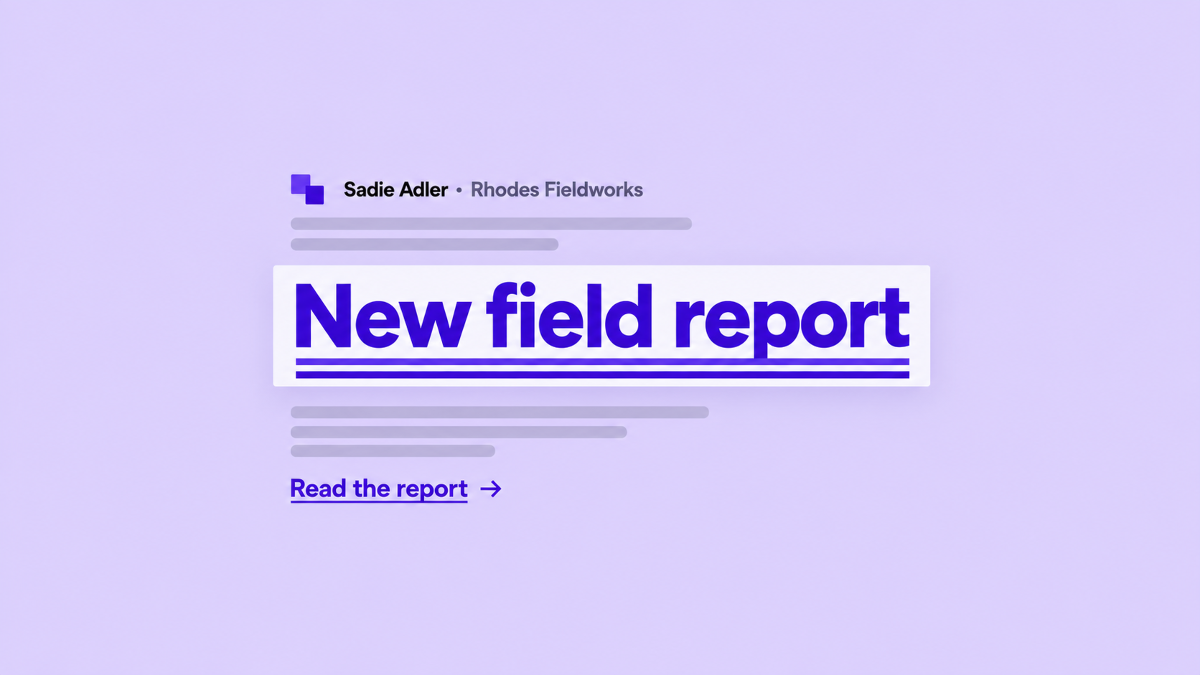
An announcement can reach people at the right moment without asking employees to remember a new signature. A temporary banner placed in managed email signatures can give a team one shared message while the rest of the signature stays personal.
The useful version of this idea is specific: choose one announcement, define who should carry it, set a start and end time, and decide where recipients should go next. The banner supports recognition. A separate signature link can support the action.
What a signature banner does
In Signaturify, a campaign connects an uploaded banner image with a selected audience and a time window. When the campaign is active, the image is added to the assigned users' signatures. When it ends, the assigned signatures are applied again so the temporary banner is removed. Campaign banners require an eligible paid subscription and are unavailable on trial plans.
That makes a banner a time-bound visual layer on an existing signature. It does not replace the employee's name, role, company details, or ordinary links. It also is not a clickable campaign image. The banner is an image without a destination link, impression counter, click tracker, or conversion report.
If recipients need to take action, put that action in the signature design itself. A button or booking link can point to a page, while the campaign banner provides the announcement context. Keeping those jobs separate makes the message easier to understand and the measurement plan more honest.
Choose an announcement that fits the format
A banner works best when recipients can understand it quickly. Choose one report, service, event reminder, or short update for a defined period.
Before creating the campaign, answer four questions:
- What is the one sentence recipients should remember?
- Which people should carry the announcement?
- What dates make the message useful?
- Where should an interested recipient go next?
Keep the image focused on the first question. Put supporting detail and the destination in the ordinary signature link or in the page the link opens. Avoid turning a small banner into a full advertisement with several competing messages.
Plan the audience with marketing and IT
Campaign targeting should reflect where the announcement belongs, not only who requested it. Signaturify campaigns can target organizational units, Google Groups, and custom User Groups.
An organizational unit is a group of users organized by a Workspace administrator, such as a region or department. A Google Group can represent a team or another set of users; Google's administrator guidance describes groups as a way to organize departments and teams. A custom User Group can represent an audience maintained inside Signaturify. Choose the scope that matches the way the organization maintains membership, then confirm that the selected audience is current.
Consider Rhodes Fieldworks, a fictional company used here for illustration. Its marketing team is announcing a new field research report. The announcement belongs on signatures for client-facing consultants and partnerships staff, but not on internal finance messages. The marketing owner supplies the banner and destination page. The Workspace administrator selects the relevant audience and checks the campaign dates.
Keep the base signature useful
A campaign should add context to a signature that already works. Review the underlying signature before adding the banner:
- The employee's name and role are easy to find.
- The company information is current.
- Optional contact rows do not leave empty labels or separators.
- The main link describes its destination, such as “Read the field report” or “Book a project call.”
- The design remains readable when the banner is absent.
Signaturify's block editor supports reusable layouts with employee and company fields, buttons, booking links, and
social links. Use those blocks for individual destinations, while the campaign banner serves as a clickable banner layer linked to your active campaign.
Preview the signature with more than one employee before activating the campaign. A long name, a different role, or an optional phone number should not make the announcement overwhelm the identity block.
Set a clear start and end transition
Give the campaign a start date and an end date that match the announcement. The campaign is scheduled before its start, becomes active during its window, and completes after the end time. At the start transition, Signaturify creates a deployment for the assigned audience so the banner can be added. At the end transition, it creates another deployment that re-applies each user's existing signature and profile without the temporary banner.
This is why the end date deserves the same attention as the start date. An announcement that stays assigned after the event feels stale, and a short window can miss the people who needed it. Allow enough time for the audience to see the message in normal conversations, while keeping the dates specific enough that the banner can retire automatically.
Before activation, review the campaign name, selected banner, audience, start, and end. Send test messages from representative accounts and check the result in the clients your organization supports. The live transition is a deployment operation, so review its transaction status and any target failures after the campaign starts or ends.
Decide how to learn from the announcement
Campaign banners do not provide built-in impression, open, click, or conversion analytics. Do not describe a banner as a measurable campaign channel unless another system provides the measurement.
You can still make a useful plan. Use a normal signature button or booking link for the destination, and measure activity on that destination through the website's existing analytics where appropriate. Treat those website signals as separate from the banner itself. If the goal is simply awareness, agree on a qualitative review with marketing and the audience owner instead of promising a campaign report the product does not generate.
Give the rollout clear owners
Marketing or brand should own the announcement wording, visual, and destination. IT or a Workspace administrator should own the integration, audience, and timing. Together, they should confirm the base signature and decide who reviews the transition results.
That division keeps a campaign focused. Marketing can change the message without changing employee data. IT can adjust the audience without rewriting the design. Both can see when the temporary layer should appear and disappear.
Planning an announcement campaign for your team? Tell us about your Workspace. Share the audience, the dates, the existing signature design, and the action you want recipients to take.
Ready to explore centralized signature management? Try Signaturify.