One brand, different teams: planning signatures by department and domain
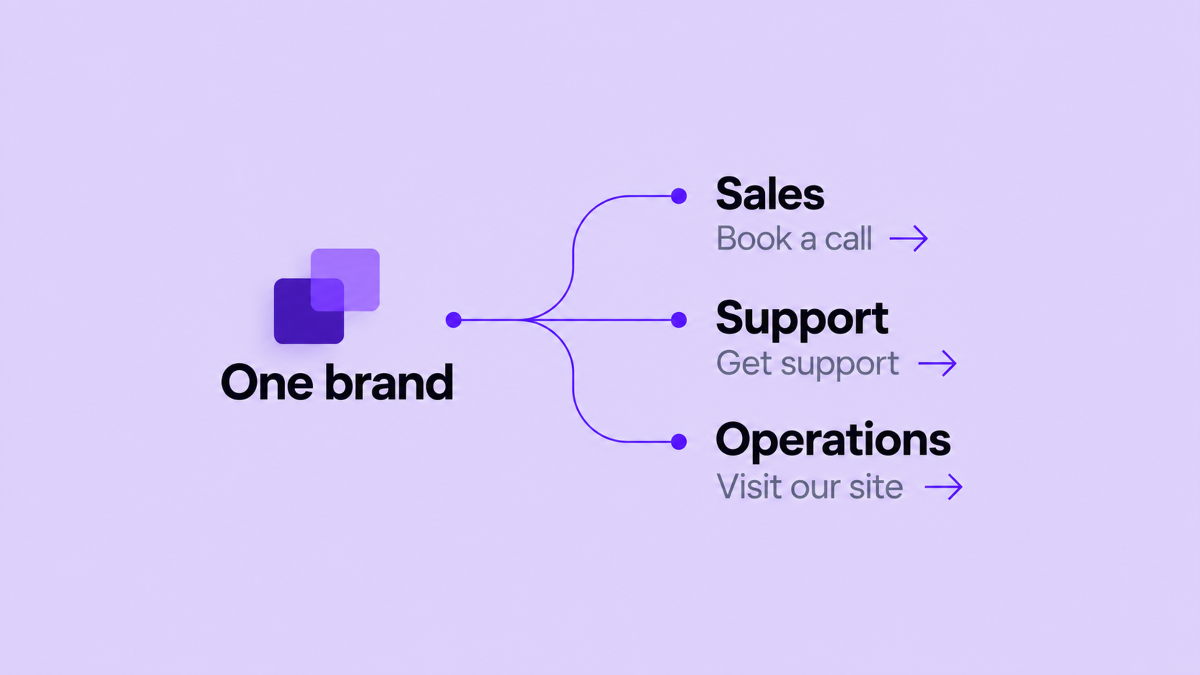
A company can have one visual identity while its teams need different information. Sales may need a booking link, support may need a regional contact route, and a second domain may require a different company address. The challenge is to make those variations deliberate instead of creating a separate signature for every person.
Plan four decisions: shared company information, the design, the audience, and the sending address. Once they are clear, an administrator and marketing team can build reusable assignments instead of one-off templates.
Start with the identity that should stay shared
Keep the logo, colors, typography, company wording, approved links, and information order in a reusable signature design. Employee fields can supply each person's name, job title, department, phone number, and email address. Company fields can supply shared information. If a phone number or social account is optional, a visibility rule can hide that block when its value is empty.
Signaturify's block editor supports layouts, text, images, buttons, booking links, social icons, QR images, and field-based visibility rules. One design can therefore adapt to different people without a separate template for every department. Preview it with complete data and with optional details missing.
Choose a company profile for each real business context
A company profile is useful when shared information changes, such as the legal entity, office address, regional website, or main contact route. Do not create a new profile simply because Sales and Operations need different links. Use the signature design and audience to express that difference when the underlying company identity is the same.
Imagine the fictional Clemens Point Works has clemenspointworks.com for its main business and clemenspointworks.eu
for its European team. These addresses are illustrative sample data, not a customer example. The company might use one
profile for each regional address while keeping the same brand system and varying team links through the audience and
design.
Name profiles by the company information they supply.
Match the audience type to the question you are asking
The right target depends on how the organization is structured. In Google Workspace, an organizational unit is an administrator-managed part of the organization tree. A Google Group is a membership-based set of users. Signaturify also provides custom User Groups for application-managed lists.
For domain targeting, confirm the primary email domain and any subdomains separately.
Google describes groups as a way to organize departments, teams, and other users, while organizational units belong to the Admin console's organization structure. A support team can be a Google Group even when its members sit in several organizational units. Choose the structure that is the source of truth for the change.
Signaturify can use domains, organizational units, Google Groups, individual users, and custom User Groups. Custom User Groups are created and populated manually within the application; they do not automatically mirror Google Groups.
Plan overlaps before applying a design
Overlap is normal. A user can belong to a domain, an organizational unit, a Google Group, and a custom User Group at the same time. During directory import, Signaturify combines overlapping domain, OU, and Google Group selections into a union of users, so a person covered by two selections is not imported twice.
Import coverage and signature assignment are separate planning questions. If two later assignments point at different designs, decide which audience owns the result before you apply either one. A useful rule might be “regional profile first, department link second,” or it might be “one signature per domain and no department overrides.” Record that rule with the assignment so the next update does not depend on memory.
Record the audience, profile, design, and owner. Resolve overlaps before rollout and preview representative people. Signaturify reports transaction results but cannot choose the business meaning of competing assignments.
Keep sending addresses in scope
An employee can send from a primary address and from one or more send-as aliases. Google's Gmail API documentation defines a send-as alias as an address from which an account can send mail, and it supports a separate signature for each alias. That means “one person” does not always mean “one signature target.”
When planning the Clemens Point Works example, check whether Sadie Adler sends from sadie@clemenspointworks.com and a
regional alias such as sadie@clemenspointworks.eu. Decide whether the alias should use the regional company profile,
the same design as the primary address, or no assignment. Treat those addresses as illustrative sample data, not
verified mailboxes.
Signaturify creates deployment items for sending addresses and can apply a domain filter to the aliases of a selected audience. Review the aliases before applying the change, especially when a person works across domains. After deployment, check each address that the team actually uses. A successful result for the primary address does not tell you whether a second alias received the intended signature.
Turn the plan into a maintainable set of assignments
Once the map is clear, choose the design and profile, select the audience, confirm descendant and domain-filter settings, review sending addresses, preview representative data, and apply the assignment.
Keep access aligned with ownership. A Workspace administrator can connect and verify the integration, while an authorized colleague can maintain designs through delegated Signaturify editor access. Marketing can own layout and links; IT can own targeting and deployment; the information owner can keep employee data current.
Plan your signature structure with Signaturify
Signaturify connects reusable design blocks, employee and company fields, audience targeting, company profiles, and centralized deployment. Use one brand system as the foundation, then create only the variations that reflect a real team, domain, or business context.
Planning different signatures for your teams? Tell us about your Workspace. Share your domains, audience structures, and the variations you need to manage.
Ready to explore the product yourself? Try Signaturify.