How to manage email signatures across Google Workspace
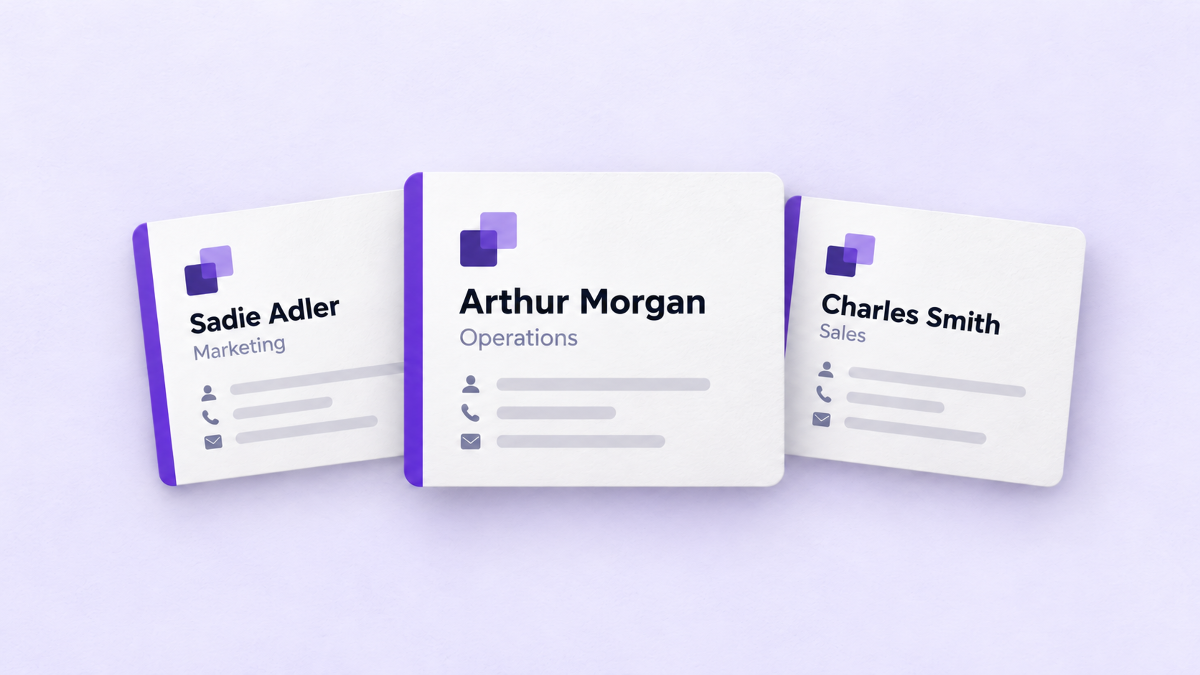
A new colleague copies a signature from an old email. Someone changes job titles but keeps their previous details. Marketing updates the logo, while several teams continue using the earlier version.
These are straightforward problems individually. Across an organization, they need a repeatable process.
To manage email signatures across Google Workspace, agree on a shared design, decide where employee information comes from, and choose how signatures will reach the right people. Assign responsibility for keeping those pieces current. IT and marketing both have a part to play.
Choose how you will manage signatures
Start with what your organization needs: individual signatures, a common footer, or centrally managed personalized signatures.
| Approach | When it can fit | What to consider |
|---|---|---|
| Give employees a shared template | A small team with few changes and someone who can check the results | Each person must add their details and apply future updates. |
| Use Google Workspace's Append footer setting | A standard message that should accompany outgoing email | The footer is added to messages and is not visible while the sender composes them. |
| Use centralized signature management | Teams that need shared designs, employee-specific information, and controlled updates | You need an administrator to connect the integration and someone to maintain designs and data. |
Gmail lets individuals create and edit their own signatures. Google Workspace also provides an administrator-managed footer. Google explains that users cannot remove that appended footer, while a signature applied to Gmail settings through its API remains editable by the user. These behaviors matter when deciding how much control you need. See Google's guide to Workspace signatures.
With Signaturify, you can build a shared design, personalize it with employee and company information, and apply it to selected teams from one place. Marketing can shape the presentation while IT coordinates access and rollout. A new logo or layout becomes a shared update you can deploy across the chosen audience.
Agree on ownership before changing the design
Decide who is responsible for three things:
- Design and messaging: the logo, layout, wording, and links.
- Employee information: names, job titles, departments, phone numbers, and office details.
- Access and rollout: connecting the Workspace integration, choosing recipients, and checking updates.
Marketing might own the first, HR or another data owner the second, and IT the third. Smaller organizations may have one person covering several roles. What matters is that a requested change has a clear owner.
In Signaturify, a verified Workspace administrator connects the integration and can delegate editor access to colleagues within the company. For example, a marketing colleague can maintain signature designs through their Signaturify access while IT retains responsibility for the Workspace connection. They do not need to become a Google Workspace administrator to contribute.
Create one design that works for different people
A reusable signature keeps brand elements consistent while allowing employee details to vary. Share the logo, typography, and company wording; personalize the name, role, and contact information.
Signaturify's block editor lets you start with a ready-made layout or arrange text, images, and links yourself. Insert employee and company fields where the details belong. That gives you a design you can reuse across a team, with each person's information filled in when the signature is applied.
The layout can also adapt to missing information. For example, one colleague has a direct phone number and another does not. Set the phone row to appear only when that field has a value. Both people can use the same design, with the phone row hidden for the colleague who has no number.
Preview the signature with employee data to see how it looks for different people. Check a long job title, a different office, and a profile with optional details left blank. This makes design decisions easier to judge before a rollout.
Keep the design focused on identifying the sender and giving the recipient a useful next action. Then review the underlying data: are job titles current, phone numbers usable internationally, and office details correct? Reusable fields remove the need to type every person's details into a separate design, but the information still needs an owner.
Match signatures to the right teams and sending addresses
A consistent brand can accommodate different teams.
Consider a fictional consultancy with two offices and separate sales and consulting teams. Everyone uses the same logo and typography. Each office needs its own contact details, and the teams may need different links. A shared design with a few deliberate variations can cover those needs.
Plan those variations before assigning signatures. Useful ways to organize the audience include:
- A domain, when different parts of the business use different email domains.
- An organizational unit, which is a way a Workspace administrator organizes users.
- A Google Group or a custom User Group in Signaturify.
- Individual users, where a specific assignment is needed.
In Signaturify, choose the signature, company profile, and audience for an update. The consultancy could apply its sales design to a selected group while keeping the consulting team's design in place. Targeting lets you match the update to the people who need it. Available audience types depend on the operation, so check the selection before applying a change.
Include sending addresses in that review. A person may send from their primary address and another address, often called a send-as alias. Google supports signature settings for each sending address. Test the addresses your team actually uses rather than assuming one employee means one signature configuration.
Test a small group before a wider rollout
Choose a few people who represent your real variations: different offices, departments, sending addresses, and levels of profile completeness.
Apply the proposed signatures to that group and send test messages. Check:
- Names, job titles, phone numbers, and office details.
- Images, links, spacing, and readability.
- New messages and replies.
- Primary addresses and relevant aliases.
- The devices and email apps your team uses.
Mobile deserves its own check. For example, Gmail on Android has a separate mobile signature setting. Google says new messages use the computer-created signature if no mobile signature has been configured. That is a reason to verify your setup rather than assume every device behaves identically. See Google's Android signature guidance.
In Signaturify, applying a signature replaces the targeted Gmail signature setting. Keep a copy of any existing content you may need before a wider rollout. Review the transaction results as well as the test emails: submitting an update is not the same as confirming that every target succeeded.
Once the pilot looks right, expand to the remaining audience and check the results again.
Make updates part of the ongoing process
A signature needs attention when someone joins, changes roles, moves offices, or leaves. Brand changes and website updates can also affect the design.
Decide what should trigger a review, who makes the change, and how it reaches Gmail. In particular, keep these two actions distinct:
Directory synchronization updates employee information. It refreshes the data available to the signature system.
Signature deployment applies a signature to Gmail. It uses the selected design and information to update the targeted sending addresses.
Signaturify provides manual signature deployment, with Auto Sync and scheduled signature automation available on eligible paid subscriptions. You can schedule signature application daily, weekly, or monthly for a supported audience. Choose a frequency that fits how often your team needs an update. Auto Sync refreshes directory information; applying signatures remains a separate action. Check the schedule's audience and design before enabling it, because a later run can replace a previous assignment.
A useful maintenance routine is to review employee details, preview affected signatures, apply the update, and check the outcome. Marketing and IT can use the same routine for a new design, with each team reviewing the part it owns.
Manage your team's signatures with Signaturify
With Signaturify, a signature design becomes something your team can maintain and reuse: build the layout, personalize it with fields, and apply it to the right audience. Conditional visibility handles optional details, while delegated access lets authorized colleagues contribute to the design.
Start with one design and a representative group of employees. Preview their signatures, apply the update, and review the results before extending it across the organization.
Want to manage your team's signatures this way? Tell us about your Workspace. Share your team size, domains, and what you want to improve.
Ready to explore the product yourself? Try Signaturify.