How marketing and IT can share email signature management
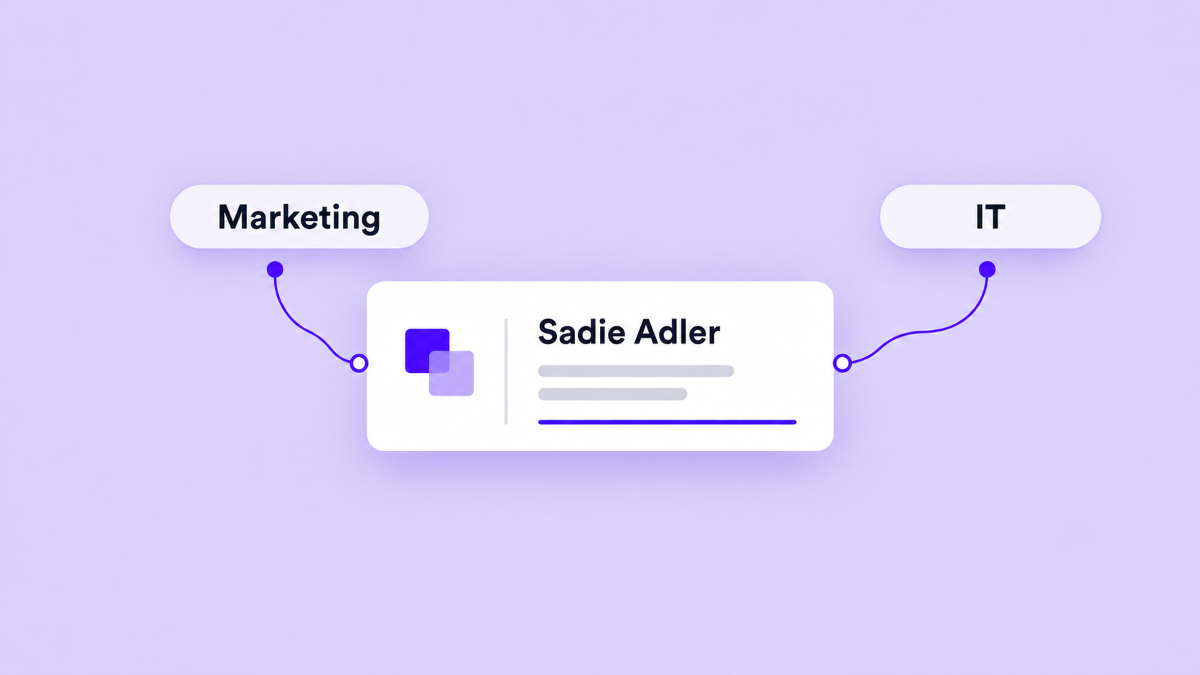
Email signatures sit between two kinds of work. Marketing cares about how the company appears in every conversation. IT cares about Workspace access, employee data, sending addresses, and changes that can affect many people at once.
When one person has to own all of it, updates wait in a queue. When everyone edits their own signature, the company gets inconsistent layouts, outdated links, and missing details. A better arrangement gives each team a clear part of the process.
Consider the fictional Hawthorne Vale, with Sadie Adler on the brand team and Charles Smith in IT. Sadie knows which call to action belongs in a sales signature. Charles manages the company's Google Workspace connection and wants to review changes before they reach a department. Signaturify's delegated editor access gives them a shared workspace for that collaboration.
Separate the work without separating the result
Start by deciding who owns each part of a signature update.
- Marketing can own the design, wording, links, and campaign context.
- IT can own the Google Workspace integration, access decisions, directory data, and deployment checks.
- A data owner can confirm that names, roles, phone numbers, offices, and other employee details are current.
The same person may hold two of these responsibilities in a small company. The useful part is making the decisions visible before a new design is applied.
Signaturify lets a Workspace administrator delegate editor access to a colleague in the same company. Editor access is not a design-only seat: an editor can participate in the standard signature management and deployment workflow available to that account. The company administrator in Signaturify still owns the organization's Workspace connection and admin-only settings.
What delegated editor access means
Delegation is access inside Signaturify. It does not make a marketing teammate a Google Workspace super administrator, change their Google administrator role, or give them control of the wider Workspace environment.
A company administrator in Signaturify chooses an eligible colleague from the company and adds them as an editor. Signaturify keeps the editor associated with the company and records who granted the access and when. The administrator can review the current editor list and revoke access later.
This creates a useful boundary. Marketing can contribute without asking for the administrator's login, and IT can keep a current list of people who can work in the signature system. The feature is a practical access handoff, not a detailed approval matrix. If your organization requires formal review, agree on that review outside the feature and record who owns the final decision.
Build a shared workflow
Use a simple sequence for each new design or major update.
1. IT prepares the Workspace context
The Workspace administrator completes the Signaturify connection and verification, checks the directory information available to the signature system, and confirms the audiences that may receive the design. Review domains, organizational units, Google Groups, custom User Groups, individual users, and relevant sending addresses when those distinctions matter.
Applying a signature can replace the targeted Gmail signature setting, so the person responsible for deployment should know exactly which users and addresses are in scope.
2. Marketing creates the signature
The editor can work from a reusable design rather than starting a separate signature for every employee. Combine shared company information with employee fields, add useful links or a booking action, and use conditional visibility when an optional detail should disappear for people who do not have it.
Preview the result with representative people before asking IT to review it. Check a long name, a different role, a second office, and a missing phone number. A shared design is only useful when it still reads well across those variations.
3. Both teams review the audience and result
Marketing should confirm that the design says the right thing for the intended team. IT should confirm that the company profile, audience, domain filters, and sending addresses point to the right people. Agree on who will run the deployment and who will inspect the transaction result.
Signaturify queues signature updates and reports progress or failures by target. Check the relevant sending addresses and aliases, then review the transaction results alongside test messages from representative addresses. A submitted change is not proof that every target received it successfully.
Keep access current as the team changes
Delegated access is part of the operating routine, not a one-time setup task. Review the editor list when someone changes roles, leaves the company, or no longer needs to work on signatures. Revoke access when the responsibility moves to another person, then assign the new owner deliberately.
Keep the design and deployment owners visible in your team documentation. If marketing owns the layout and IT owns the final deployment, say so. If a small team gives one person both responsibilities, say that too. Clear ownership makes an urgent link change or employee update easier to handle.
Share signature work with Signaturify
Signaturify connects delegated editor access with reusable designs, employee and company fields, audience targeting, previews, and centralized deployment for Google Workspace. Marketing can help maintain the presentation, while the team can agree who owns access and the Workspace setup.
Planning a shared signature workflow? Tell us about your Workspace. Share which teams should contribute, who manages Google Workspace, and where the current process gets stuck.
Ready to explore the product yourself? Try Signaturify.