A practical plan for rolling out a new company email signature
A new company email signature is a small change that reaches every customer conversation. It can also replace existing Gmail signature content, affect several sending addresses for one person, and expose missing employee information if the team has not prepared for it.
For a fictional example, Copper Ridge Partners is rolling out signatures for Client Partnerships, Operations, and
Support across copperridgepartners.com and copperridgepartners.eu. Sadie Adler, Arthur Morgan, and Charles Smith are
illustrative people and addresses, not customer evidence.
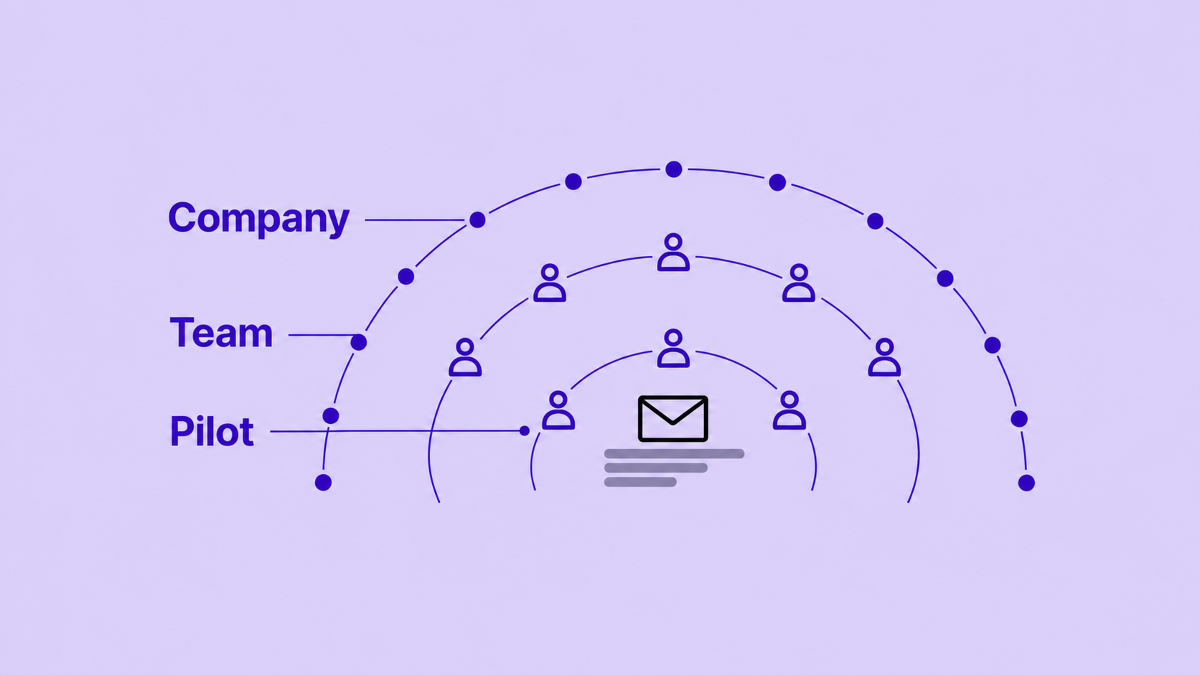
A controlled rollout gives marketing, IT, and the data owner a shared sequence: assign ownership, build a reusable design, test representative users, apply it to a defined audience, and check the results before expanding. Then decide what should be maintained manually and what can be scheduled.
1. Define the change and assign owners
Start with a short rollout brief. Write down the reason for the change, the teams, domains, and sending addresses in scope, the details that must be current, the design approver, the employee-data owner, the Workspace administrator, and the evidence that will make the rollout complete.
These roles can belong to two people in a small company, but they should remain explicit. Marketing can approve the visual system and links, IT can control access and deployment, and the data owner can confirm that fields are accurate. Signaturify supports delegated editor access for colleagues in the same company, so agree on who can edit, review, and deploy.
2. Inventory the data and sending addresses
Before designing the final version, list the shared company and employee fields the signature will use:
Check the source of each field. A signature can personalize a layout with directory and company-profile values, but it cannot correct a missing or outdated record. A phone row can disappear when blank; an incorrect job title needs a data correction.
Also list the addresses from which each pilot user sends email. A send-as alias is another address an account can use to send mail, and Gmail supports a signature for each alias. Include regional or role-based aliases instead of assuming the primary address is the whole scope.
Treat the directory and alias review as a separate data task with a named owner.
3. Build one reusable design
Create the design around the information recipients need first: the sender's name, role, company, useful contact route, and one relevant next action. Use the shared brand elements once, then add fields for the values that change by person.
Signaturify's block editor provides layouts and blocks for text, images, buttons, booking links, social icons, QR images, and contact details. Field-based visibility rules can keep an optional row and its separator together, so one design can serve profiles with and without a direct phone number.
Use a company profile for shared information and choose it before the pilot. Preview a long name or job title, a different office or domain, and empty optional fields. Keep the design readable when images are hidden and check a received test message in the clients the team uses.
4. Choose a representative pilot
The pilot should reflect the decisions that could change the result: include each domain or regional profile, different departments or organizational units, a Google Group or custom User Group member when relevant, an alias, and incomplete optional data. In Signaturify, select the design and profile, confirm the visible target list, and submit the deployment. The pilot is a review group, not an automatic staged environment. Keep a copy of existing Gmail signature content because applying a signature replaces the targeted setting.
5. Apply the pilot and inspect the result
Send test messages from each relevant address after the deployment finishes. Check the name, role, contact details, company profile, links, images, spacing, replies, primary addresses, aliases, and the email applications used by your team.
Signaturify queues deployment work and records transaction progress and failures by target. Check that history alongside received messages. A submitted update is not evidence that every target succeeded; resolve failures before reapplying the affected audience.
6. Expand by audience, not by guesswork
Move from the pilot to remaining users in defined groups. A domain can fit a regional rollout, an organizational unit can fit the Workspace organization tree, a Google Group can fit a maintained working team, and a custom User Group can fit a list that marketing or operations owns directly.
Avoid overlapping assignments that point to different designs unless you have written down the intended rule. Decide which profile and design apply to a person in several audiences, and whether a domain filter should limit aliases.
Apply remaining audiences in a sequence the owners can monitor. Inspect transaction results and sample messages before moving to the next group, and keep the signature, profile, target, owner, date, and result in the rollout record.
7. Decide what automation should maintain
Separate employee-data maintenance from signature deployment.
Directory synchronization refreshes information. It helps keep user records and aliases current for later signature work.
Signature automation applies a signature. It can schedule deployment for a supported audience at a daily, weekly, or monthly frequency with an active subscription.
Do not schedule a recurring deployment until the pilot is approved. Then set the frequency, audience, company profile, signature, domain filter, and owner deliberately. A scheduled deployment can replace a previous signature assignment, so the owner should review its scope when the team structure or design changes.
For a one-person correction, Signaturify can refresh selected users from Google during a manual sync, including renamed or deleted records and stale aliases, before signature work is planned. This targeted behavior is not an instant full-directory update: check the sync result, then apply the signature separately.
8. Keep a maintenance loop
Choose a few events that trigger a review: a new hire, departure, role change, office move, domain or alias change, new company profile or link, campaign or brand update, failed transaction, or stale directory record.
Route each event to the data owner, marketing, or IT according to the change.
Roll out your next signature with Signaturify
Signaturify brings together reusable designs, personalized fields, audience targeting, delegated editor access, previews, transaction history, and scheduled deployment for supported audiences, so each rollout step has a clear owner.
Planning a new company signature? Tell us about your Workspace. Share your domains, audiences, current signature setup, and what you want the rollout to achieve.
Ready to explore the product yourself? Try Signaturify.